Ergonomic Desk Setup for Healthier Computing
Create an ergonomic desk: match chair and monitor height, keep wrists neutral, tune lighting, and take regular movement breaks for healthier computing.
Posture Essentials
A healthy workstation begins with an ergonomic chair that supports a neutral spine. Position lumbar support to nestle into the natural curve of your lower back, then set seat height so feet are flat on the floor and knees align near hip level. Keep a small gap between the seat edge and the back of your knees to avoid pressure. Adjust armrests to lightly support forearms without lifting shoulders; they should guide elbows close to the torso. A gentle recline of about a hundred degrees encourages micro-movements and reduces spinal load. Keep your head balanced over the torso, chin soft, and avoid craning forward toward the screen. If your feet dangle, introduce a footrest. Consider a thin cushion or rolled towel as a temporary lumbar bolster while you evaluate chair fit. Revisit settings when footwear, flooring, or tasks change, and remember that comfort is dynamic—alternate sitting postures, breathe deeply, and release tension in jaw, neck, and shoulders throughout the day.
Desk and Keyboard
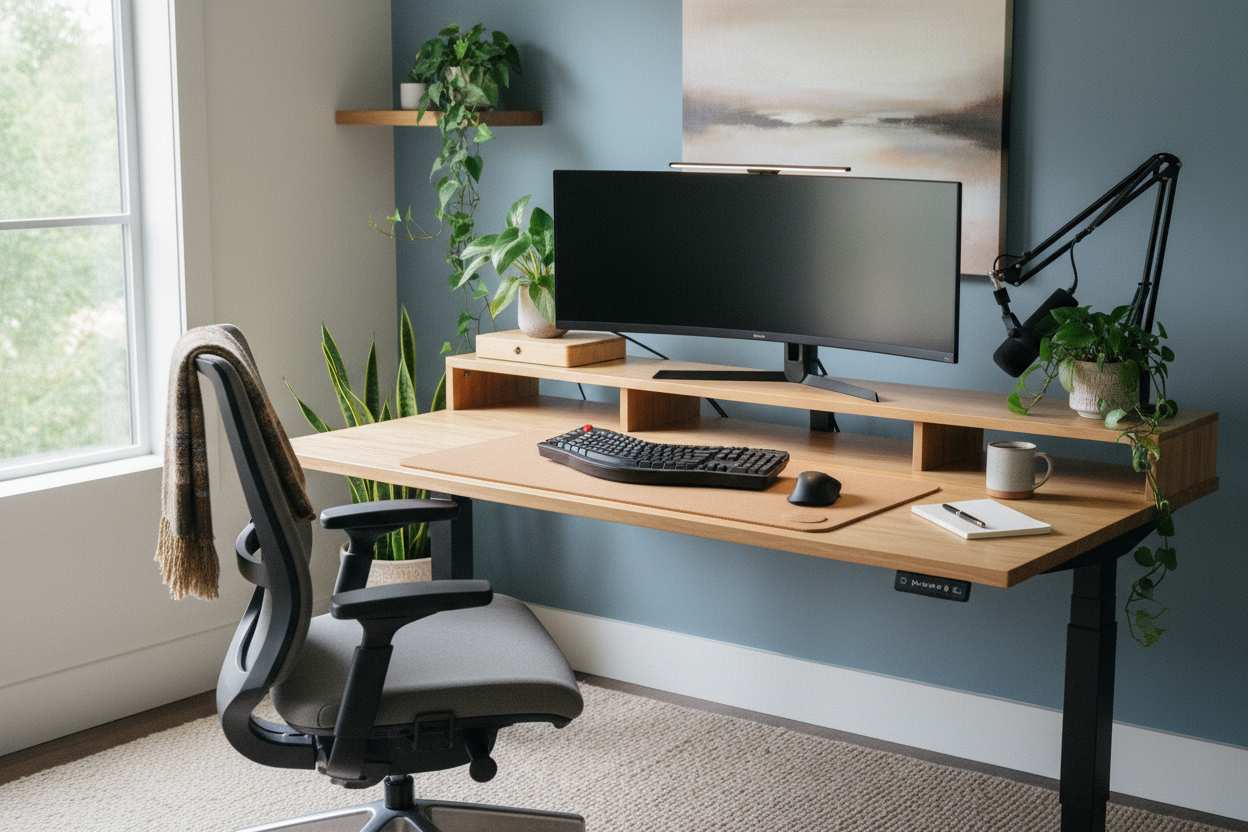
Set desk or tray height so elbows rest near right angles with shoulders relaxed, placing the keyboard at or slightly below elbow level. Keep wrists neutral—not bent up or down—and use a slight negative tilt when practical. A split keyboard or compact layout can reduce ulnar deviation and bring the mouse closer, minimizing reach. Choose a pointing device that suits your anatomy, whether a vertical mouse, trackball, or standard shape with low click force; move from the shoulder rather than hinging at the wrist. Use a wrist rest only during pauses, not while typing. Shape the desk edge or add a soft pad to avoid forearm pressure. Organize by reach zones: primary (keyboard, mouse), secondary (phone, notepad), tertiary (infrequent tools). A separate numeric keypad frees space when not needed. Keep a document holder between keyboard and monitor to limit neck twisting. Embrace cable management and a clutter-light surface to preserve posture and reduce friction during task changes.
Monitor Setup
Calibrate monitor height so the top line of text sits at or slightly below eye level, letting your gaze fall naturally downward. Maintain an arm's-length distance for most screens and scale text to avoid squinting. With dual displays, keep the primary screen centered and the secondary angled toward you; match heights precisely. Control glare by reorienting the display, softening overhead light, or using a matte filter. Balance brightness and contrast with room lighting, and add subtle bias lighting behind the screen to reduce perceived contrast and visual fatigue. Increase text rendering clarity and cursor visibility if you notice strain. Practice the 20-20-20 habit to relax eye muscles: take periodic pauses to focus on a distant object and blink intentionally to counter dryness. If helpful, enable blue-light reduction later in the day while maintaining adequate contrast. Keep vents and fans from blowing toward your eyes, and consider a larger display or higher pixel density when frequent zooming disrupts workflow.
Move and Recover
Ergonomics favors variety over any one perfect pose. Rotate between sitting and standing, sprinkle short microbreaks, and shift your weight regularly. Use gentle cues—a timer, watch alert, or smart speaker—to prompt a minute of shoulder rolls, neck nods, wrist flexor stretches, and calf pumps. When standing, pair a foot rail or low stool with an anti-fatigue mat to encourage subtle postural changes. Take walking calls, place a printer a short stroll away, or do a quick hallway lap between tasks. Keep keystrokes light, release mouse grip often, and pace intense typing with recovery movements. Hydrate, and try slow breathing to unlock shoulder and jaw tension. Fidget tools under the desk can promote active sitting without distraction. Avoid long static standing; alternate feet on the rail and adjust stance width. Track personal signals—eyestrain, tingling, tightness—and adjust equipment or habits before discomfort compounds. Progress gradually so new routines stick and energy stays consistent.
Accessories and Environment
Thoughtful accessories multiply ergonomic gains. Laptop users should raise the screen on a laptop stand and add an external keyboard and mouse for neutral alignment. A monitor arm fine-tunes height, depth, and tilt while opening desk space. Use a docking station or USB hub to simplify connections and reduce cable tug. Choose a headset with cushioned ear pads and a properly placed boom to minimize vocal strain and jaw tension during calls. Align the webcam at eye level and add soft task light to prevent squinting. Keep a central document holder for frequent referencing. Preserve airflow around devices for thermal health; elevate laptops from soft surfaces and avoid blocking vents. Layer lighting—ambient for the room, targeted task light, and subtle bias lighting behind displays—to reduce glare and support visual comfort. Control noise with soft furnishings or passive-isolation headphones. Label chargers, route cables cleanly, and dedicate a compact charging zone. Maintain cleanliness with the right wipes, and design resets that make tidy, healthy computing effortless.