Monitor Buying Guide: Resolution, Refresh Rate, and Color
Learn how resolution defines detail, refresh rate drives smoothness, and color accuracy and gamut shape lifelike visuals for gaming, creation, and work.
Resolution and Screen Size Basics. A monitor's resolution describes the number of pixels arranged across the screen, while screen size measures the diagonal length. Higher resolution can reveal finer details, but its impact depends on viewing distance and pixel density (PPI). Common aspect ratios like 16:9 suit general use, while ultrawide 21:9 or 32:9 expands horizontal workspace for timelines, multitasking, and immersive games. Larger screens emphasize the need for more pixels so text and UI elements remain crisp without heavy scaling. Conversely, compact displays can feel sharp even at modest resolution due to tighter pixel packing. For general productivity, a balanced pairing of size and resolution prevents eye strain and minimizes the need to zoom. Creators and analysts benefit from extra pixels for precise control, dense interfaces, and side‑by‑side windows. Gamers should consider how resolution impacts GPU load and frame rates, prioritizing combinations that their hardware can sustain smoothly.
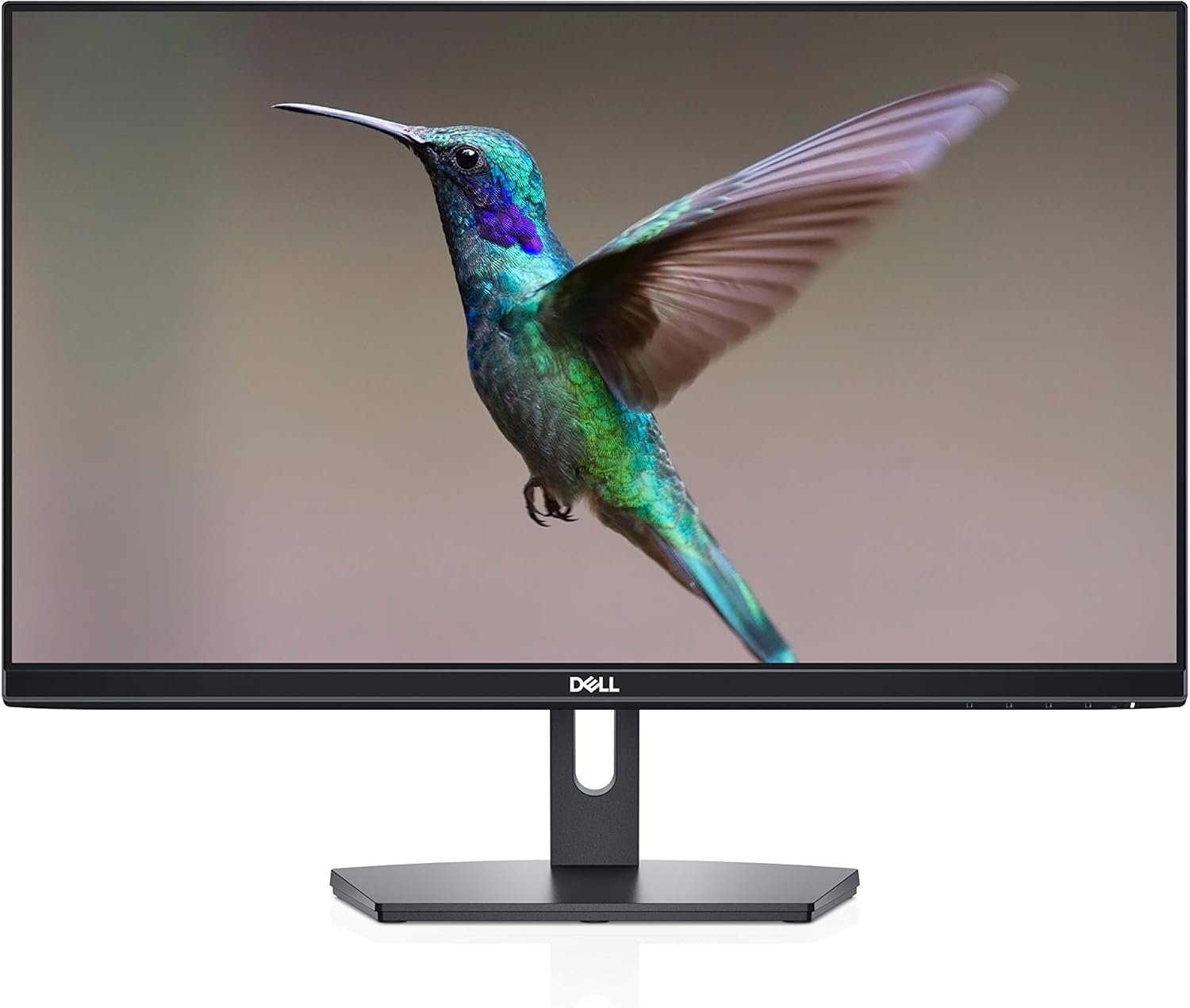
Pixel Density, Clarity, and Workspace. Pixel density determines how crisp text, icons, and fine lines appear. Higher PPI reduces visible pixel structure, making fonts smoother and graphics more refined. However, an extremely dense display may require operating system scaling so elements remain readable. Thoughtful scaling preserves sharpness while keeping UI sizes comfortable. Professionals who edit documents, code, or handle spreadsheets appreciate high density because it reduces aliasing and fatigue during long sessions. At the same time, usable workspace is critical; higher resolution increases canvas area for docked tools, reference panels, and multiple apps without constant window juggling. When comparing monitors, consider your typical viewing distance and the tasks you perform every day. A comfortable pairing might be a moderate size with mid‑to‑high resolution for general desks, or a bigger panel with higher resolution for deeper desks. If you prefer minimal scaling, choose a combination where default text size is already legible while retaining the crisp benefit of more pixels.
Refresh Rate, Response Time, and Motion Clarity. The refresh rate (measured in Hz) indicates how many times per second the screen updates. Higher refresh rates reduce perceived blur and make cursor movement, scrolling, and fast games feel more fluid. To realize these benefits, your system must deliver matching frame rates; otherwise, the experience may resemble a lower‑refresh display. Meanwhile, response time metrics like GtG and MPRT describe how quickly pixels change and how long images persist. Faster transitions reduce smearing and trailing, though aggressive overdrive settings can cause inverse ghosting or halos. Some monitors offer backlight strobing to further improve motion clarity, but it may introduce flicker or reduce brightness. For broad productivity, moderate refresh rates add smoothness with minimal power cost. For competitive gaming, prioritize higher rates, consistent frame delivery, and tuned overdrive. Creators and office users can still benefit from the fluidity of elevated refresh, especially for complex interfaces and fast scrolling.
Adaptive Sync and Smooth Playback. Without synchronization, the mismatch between frame rate and refresh rate can cause screen tearing or stutter. Adaptive sync technologies align the display's refresh to the content's frame output, producing smoother motion and reducing input lag compared with traditional V‑Sync. This dynamic approach is often called variable refresh rate (VRR), and it shines when frame rates fluctuate. Features like low framerate compensation (LFC) help maintain smoothness if performance dips below a panel's natural VRR window. For consoles and PCs, confirm that your ports, cables, and graphics settings support VRR at your target resolution and refresh. In fast action, adaptive sync pairs well with a tuned overdrive profile to balance clarity and artifact control. If you work across creative apps and also game, consider a display that offers easy preset switching, so you can move from color‑critical tasks to low‑latency, tear‑free play with minimal fuss.
Color Accuracy, Gamut, and HDR Fundamentals. Accurate color separates a good monitor from a great one. Panel types behave differently: IPS typically delivers strong color consistency and wide viewing angles; VA often offers higher contrast with deeper blacks; OLED provides exceptional contrast and near‑instant response; TN favors speed over fidelity. Evaluate color gamut coverage like sRGB, DCI‑P3, and Adobe RGB based on your workflow. For web and office, sRGB accuracy is key; for cinema and design, wider gamuts matter. Seek low Delta E for precision, and consider uniformity compensation on larger panels. Proper calibration aligns gamma and white point, ensuring what you see matches your output. Bit depth also affects smooth gradients; true 10‑bit or 8‑bit with FRC can reduce banding. For HDR, look beyond the label: effective implementations need ample peak brightness, strong contrast or local dimming, and accurate tone mapping. Without those fundamentals, HDR can appear washed out or inconsistent.
Ports, Ergonomics, and Practical Priorities. Connectivity shapes daily convenience. DisplayPort and HDMI handle high bandwidth for elevated resolution and refresh rate, while USB‑C with DisplayPort Alt Mode can carry video, data, and power delivery for single‑cable laptop setups. Integrated USB hubs, KVM features, and picture‑in‑picture add versatility for multi‑device workflows. Ergonomics matter as much as specs: a stable stand with height, tilt, swivel, and pivot boosts comfort, and VESA mounting enables arms or wall brackets. Consider anti‑glare coatings, blue light modes, and ambient lighting to reduce strain. For gaming, prioritize refresh rate, VRR, and low input lag. For creative work, focus on color accuracy, gamut, and uniformity. For office productivity, aim for balanced resolution, comfortable pixel density, and dependable ergonomics. Define your primary use, match specs to hardware capability, and choose a monitor that makes everyday tasks feel effortless and every project look its best.